
Sometimes the number your shipping depends on isn't the product's weight or price. A down pillow weighs 0.6 kg, but couriers bill it as 2.5 kg because of its size; a framed print costs $40 but should be insured as if it were worth $250. Store such a number on the product as a custom field, and your rules can use it.
Below, the billed weight goes into a custom field named adjusted_weight, and shipping costs $2 per kg of it.
Add the number to your products
- Open a product for editing, click Screen Options at the top of the page, and select Custom Fields. You do this once: the box then shows on every product.
- In the Custom Fields box, enter adjusted_weight as the Name and 2.5 as the Value, then click Add Custom Field. If Name is a list, click Enter new first.
Enter the number alone: 2.5, or 2,5 if the Decimal separator under WooCommerce > Settings > General is a comma. A value with a unit or a thousands separator, such as 2.5 kg or 1,234.5, is ignored.
- Many products. Add a column named Meta: adjusted_weight to a CSV file and import it under Products > All Products > Import.
- Variations. A variation uses its product's value unless it has its own. Neither WooCommerce nor ACF has a place to type a variation's custom field, so set the ones that differ with a CSV import.
- Advanced Custom Fields (ACF). ACF replaces the Custom Fields box with its own fields. See the notes on ACF.
Charge by the field
In a rule's Charge section, select Custom field rate, enter the field's name, and fill in the fields
to say "add $2 for each 1 over 0":

The charge adds the field up over the order and takes $2 for every started unit of the total. With these products in the cart:
| Product | adjusted_weight | Quantity |
|---|---|---|
| Pillow | 2.5 | 2 |
| Lamp shade | 4 | 1 |
the total is 2.5 × 2 + 4 = 9, and shipping costs $18.
A product without the field counts as 0, so products the field doesn't concern add nothing. If the rule splits the order into packages, the field is added up over each package instead.
Match orders by the field
To apply a rule only to some orders, add a Custom field condition, e.g. adjusted_weight between
0 and 10:
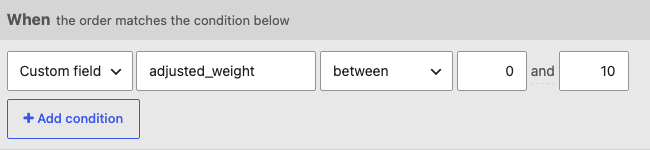
The condition adds the field up the same way. To add it up over certain products only, use a Contains condition and select custom field in place of any amount.
Save and check
Click Save changes. Tree Table Rate Shipping looks the field up on your products and warns you if:
- no product has it, which is usually a typo in the name. Names are exact: adjusted_weight and Adjusted_Weight are two different fields;
- its value is not a number on some products, naming a few of them;
- a product has it more than once. Only the first value is used.
Then add the product to the cart and check the shipping cost.
If the rate looks wrong
- The cart shows the old rate after you changed a value. WooCommerce keeps the shipping it calculated for a cart until the cart or the address changes. Change a quantity in the cart to see the new rate.
- A product adds nothing to the rate. Its value is missing or is not a number. On an order already placed, the shipping line in the order's admin screen lists the ignored values under Tree Table Rate warnings, e.g. adjusted_weight ignored on Pillow (#15): '2.5 kg'. Shoppers don't see them.
WPML
A shopper browsing in another language gets that language's copies of your products in the cart. WooCommerce Multilingual copies WooCommerce's own fields, such as weight and price, to those copies, but not yours. So Tree Table Rate Shipping reads the value from the translation and, if it has none, from the product in your site's default language. If English is your default language and you set adjusted_weight only on the English pillow, a German shopper's cart still uses it.
To give translations the field anyway, choose how under WPML > Settings > Custom Fields Translation:
| Setting | What translations get | For shipping numbers |
|---|---|---|
| Don't translate | Nothing (the default for your own fields) | Fine: the default language's value is used |
| Copy | The original's value, kept in sync | Recommended |
| Copy once | The original's value when the copy is created | Risky: later changes don't reach the copy |
| Translate | Their own value | Only for a different number per language |
A translation's value that is not a number is ignored without falling back to the default language, so that a typo shows up in the warnings instead of hiding behind another language's value.
Advanced Custom Fields (ACF)
- Use the Field Name, not the Field Label. For a field labelled "Adjusted weight" and named adjusted_weight, the rule needs adjusted_weight.
- Write decimals with a dot. An ACF Number field drops commas, whatever your store's decimal separator: 2,5 saved through an ACF import add-on or code becomes 25. Typing in the product editor is safe.
- Fields in a Group are stored under the group's name too: adjusted_weight in a group shipping becomes shipping_adjusted_weight. Use that full name.
- Fields in a Repeater (ACF PRO) are stored per row, e.g. boxes_0_adjusted_weight for the first row of a repeater boxes. A rule reads one field name, so it can only use one particular row.
- ACF Multilingual sets Number fields to "Copy" in its "Same fields across languages" mode, and to "Copy once" in "Different fields across languages" mode.